

Download Black Menu – One‑Click Google Access, Chrome Extension
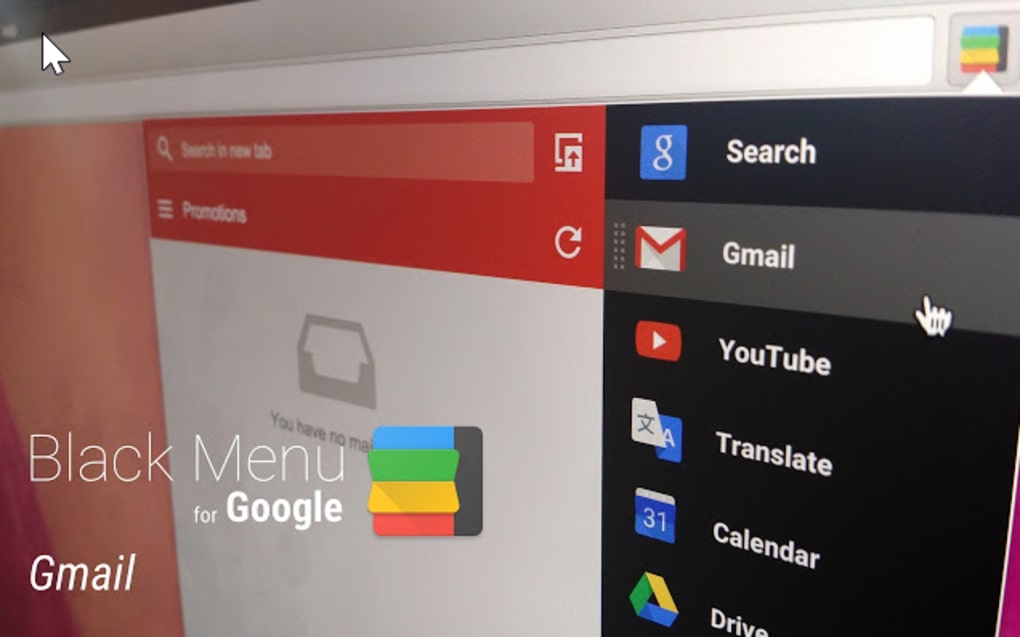
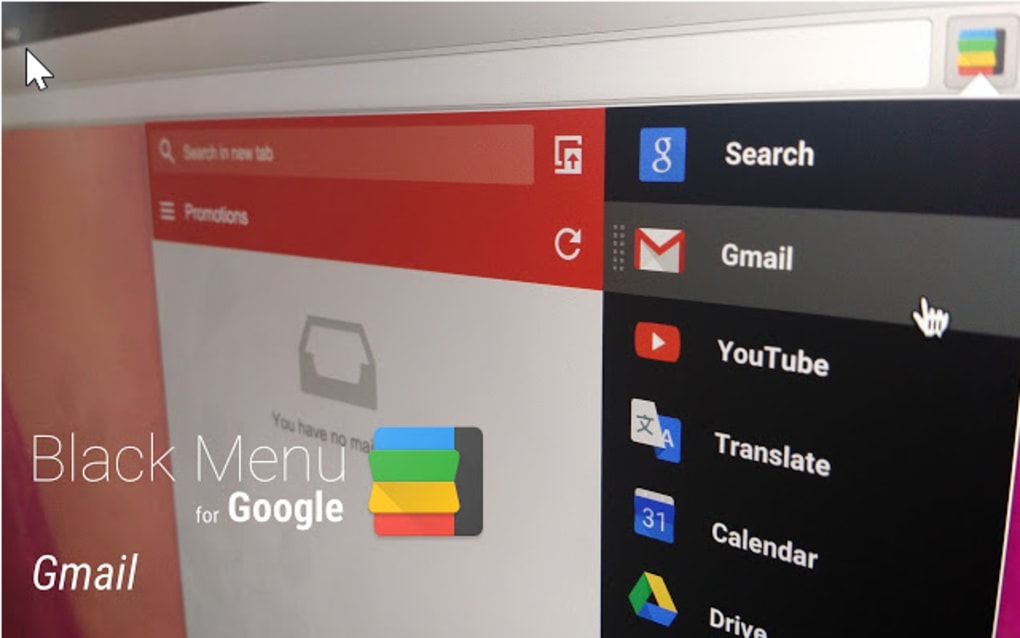
Black Menu for Google is a lightweight, free Chrome extension created by apps.jeurissen.co. It puts every major Google service—Gmail, YouTube, Google Maps, Drive, Calendar, Photos, and dozens of others—into a single, customizable drop‑down menu that lives in your browser toolbar. Instead of opening a new tab, navigating to the Google homepage, and then searching for the right service, you simply click one button and instantly jump to the tool you need.
The extension is built with privacy and speed in mind, offering a secure way to centralise Google’s ecosystem without any intrusive data collection. Whether you are a power user juggling multiple Google accounts or a casual surfer who just wants faster access to YouTube and Gmail, Black Menu streamlines the workflow and reduces tab overload. Because it runs entirely within Chrome, the menu stays responsive, updates automatically, and respects the browser’s native security sandbox.
In short, Black Menu transforms the way you interact with Google, turning a fragmented suite of web apps into a cohesive, one‑click experience.
Key Features of Black Menu
- One‑Click Access to All Google Services: Reach Gmail, YouTube, Google Drive, Maps, Photos, Calendar, Docs, Sheets, Slides, News, Scholar, and more from a single drop‑down.
- Fully Customisable Menu: Drag‑and‑drop to reorder services, hide those you never use, and add custom shortcuts to third‑party tools that integrate with Google.
- Context‑Sensitive Opening: Open links in the current tab, a new tab, or a private window with a simple right‑click on any menu item.
- Lightweight & Fast: The extension adds less than 200 KB to your Chrome profile and loads instantly, keeping your browser’s performance intact.
- Automatic Updates: Black Menu receives regular security patches and feature upgrades through Chrome’s web‑store update mechanism.
- Secure Authentication Handling: The extension never stores passwords; it relies on Chrome’s built‑in password manager and OAuth tokens for each Google service.
- Dark‑Mode Friendly: The UI automatically matches Chrome’s theme, providing a seamless look for users who prefer dark interfaces.
- Cross‑Device Sync: When you sign in to Chrome, your Black Menu configuration syncs across Windows, macOS, Linux, Chrome OS, and Android Chrome.
- Offline Indicator: The menu shows a subtle offline badge if your internet connection drops, preventing unnecessary loading errors.
- Open‑Source Transparency: Core UI components are open‑source on GitHub, allowing developers to audit and suggest improvements.
How to Install and Use Black Menu on Chrome
Installation Steps
Installing Black Menu is straightforward and takes less than two minutes:
- Open Google Chrome and navigate to the Chrome Web Store page for Black Menu.
- Click the “Add to Chrome” button. A confirmation dialog will appear, summarising the permissions required (access to your browser toolbar and Google domains).
- Press “Add extension”. Chrome will download the package, verify its integrity, and automatically enable the extension.
- Once installed, a small black icon appears to the right of the address bar. Clicking this icon opens the full Google service menu.
- If you want the menu to appear on the left side of the toolbar, right‑click the icon, select “Pin”, and then drag it to your preferred location.
Usage Tips and Customisation
After installation, you’ll notice a default list of the most popular Google services. To tailor the menu to your workflow:
- Reorder Services: Click the gear icon at the bottom of the menu, then drag any service up or down to prioritise it.
- Add Custom Links: In the settings panel, select “Add New Shortcut”, paste the URL of any Google‑based tool (e.g., Google Keep, Google Forms), and give it a friendly name.
- Hide Unused Items: Toggle the visibility switch next to any service you rarely use. Hidden items are stored in the extension’s local storage and can be re‑enabled later.
- Keyboard Shortcuts: Open Chrome’s Extensions → Keyboard shortcuts page and assign a custom hotkey (e.g., Ctrl+Shift+G) to open Black Menu instantly.
- Sync Across Devices: Ensure you are signed into Chrome with the same Google account on all devices. Your customised menu will automatically appear wherever you use the extension.
Because the extension works entirely within the browser, you can keep the menu open while you read an article, watch a video, or draft a document—no need to switch tabs. This “stay‑in‑place” approach reduces cognitive load and boosts productivity, especially for users who spend hours navigating between Google’s ecosystem of apps.
Compatibility, Pros and Cons
Black Menu is designed for the Chrome browser on all major platforms, including Windows 10/11, macOS Ventura and later, Linux distributions with Chrome, Chrome OS, and the Android version of Chrome. The extension also works in Chromium‑based browsers such as Microsoft Edge, though the UI is optimised for Chrome’s native toolbar.
Pros
- Speed: Immediate access without loading a separate Google homepage.
- Customisation: Drag‑and‑drop ordering, hide/show options, and custom shortcuts empower users to build a personal Google hub.
- Low Resource Footprint: Minimal impact on CPU and memory, even on older machines.
- Free & Open‑Source: No hidden fees, and the core UI code is publicly auditable.
- Secure: No password storage, uses Chrome’s native security model.
- Cross‑Device Sync: Your menu stays consistent across all devices logged into the same Chrome profile.
Cons
- Chrome‑Only: Users of Firefox, Safari, or other browsers cannot use the extension.
- Limited to Google Services: The menu does not support non‑Google web apps, which may require a separate launcher.
- Initial Learning Curve: New users may need a few minutes to understand the customisation options.
- Permission Prompt: Some privacy‑conscious users may be wary of the “read and change all your data on the websites you visit” permission, even though it is required only for the toolbar UI.
Frequently Asked Questions
Is Black Menu completely free to use?
Yes, Black Menu is a free Chrome extension. There are no hidden subscription fees or in‑app purchases. All core features, including customisation and cross‑device sync, are available at no cost.
Does the extension collect any personal data?
Black Menu does not store passwords, emails, or any personal content. It only requests permission to read the URL of the active tab so it can open Google services in the appropriate context. All data handling follows Chrome’s built‑in security policies.
Can I use Black Menu on mobile Chrome?
The extension is available on Chrome for Android, but due to limited screen real estate the full drop‑down menu is displayed as a compact overlay. All core features, including custom shortcuts, work the same way as on desktop.
How do I remove a service from the menu?
Open the Black Menu settings (gear icon), locate the service you wish to hide, and toggle the visibility switch off. The service is hidden instantly, but you can bring it back later by re‑enabling the switch.
Will Black Menu affect my browser’s performance?
Because the extension adds less than 200 KB of JavaScript and CSS, the impact on CPU, memory, and loading speed is negligible. Users on low‑end hardware have reported no noticeable slowdown.
Conclusion – Should You Download Black Menu?
If you spend any amount of time in the Google ecosystem, Black Menu is a productivity booster that pays for itself in seconds saved each day. Its one‑click design, deep customisation, and seamless sync across devices make it a natural companion for Chrome power users. While it is limited to the Chrome family of browsers, that restriction is outweighed by the speed, security, and zero‑cost nature of the tool.
The extension’s lightweight footprint ensures it won’t bog down older machines, and the open‑source transparency adds a layer of trust for privacy‑conscious users. In short, Black Menu delivers on its promise: instant, secure, and configurable access to all Google services from a single button. Download it today, customise the menu to fit your workflow, and experience a cleaner, faster browsing experience.







